Mobile technology updates

Mobile technology is the technology used for cellular communication. Mobile code division multiple access (CDMA) technology has evolved rapidly over the past few years.by "Ztuch"

Future of technology

Self-Driving Cars,Clean Energy,Virtual and Augmented Reality,Drones and Flying Cars,Artificial Intelligence,Pocket Supercomputers for Everyone,Cryptocurrencies and Blockchains,High-Quality Online Education by "Ztuh"

Modern technology

Modern technology is simply an advancement of old technology, the impact of technology in modern life is unmeasurable, we use technology in different ways and sometimes the way we implement various technologies ends up harming our lives or the society we leave in

Web Dessigning

Web design encompasses many different skills and disciplines in the production and maintenance of websites.

Web Development Services

Web Development is a global online solution for website owners who maintain their website on daily, weekly or monthly basis. This help website administrator to manage their website contents, categories, sub categories, child categories, products,

Online Advertising

Online advertising, also called online marketing or Internet advertising or web advertising, is a form of marketing and advertising which uses the Internet to deliver promotional marketing messages to consumers.

Showing posts with label Ztuch Official. Show all posts

Wednesday, 15 November 2017

WhatsApp Has A Lot of Hidden Features You Might Not Know About - Ztuch

Here’s how to get the most out of WhatsApp.


"I'll WhatsApp you," has now become a pretty standard phrase, usurping the conventional practice of "texting" SMS messages and replacing it with account-based instant messaging over more versatile or lower cost wi-fi or data connections, while, at the same time, preserving the link to the person's telephone number. The messaging apps ubiquity is no surprise, with its user base far surpassing any previously popular messaging service such as BBM and Facebook messenger; by 2016, Whatsapp had ONE BILLION active users and is the most used and trusted IM client on the planet.
The backstory to Whatsapp is awesome as well. Two guys -- Brian Acton and Jan Koum -- left their employment at Yahoo and searched for new opportunities at Facebook, where they were turned down. Looking for what to do next the two engineers took interest in the then-embryonic App Store, a thing they saw as a HUGE opportunity, and set about working on an idea for a proprietary messaging service.
--------------------------------------------------
Also: if you're interested in becoming an iPhone developer, UDEMY is running an amazing offer right now which, for just £15 (it's usually £200!), will get you access to one of the best iPhone Developer Courses on the planet right now – The Complete iOS 10 Developer Course. In this course you will learn how to make apps like WhatsApp, Uber and SnapChat.
And if Android's your thang, well, there's one for that as well! The Complete Android N Developer Course.
--------------------------------------------------
Whatsapp was incorporated in 2009, just seven years ago, and the rest, as they say, is history. Whatsapp, like Facebook and Instagram before it, is a shining example of how just a few people, armed with the right idea and sense of timing, can make HUGE waves in the technology space.
WhatsApp users send 42 billion messages a day, they share 1.6 billion pics each day and 250 million videos, and there are over 1 billion WhatsApp groups.
No wonder Facebook bought the company for a whopping $19 billion in cash and stock. But despite the large number of users, most people don’t know the little tips and tricks that make using WhatsApp even better. That’s why we’ve put together this handy guide to help you get the most out of WhatsApp. With it you’ll be chatting like a WhatsApp pro in no time.

Disable Read Receipts

Read Receipts are the two little blue check marks next to a message that signal when the message has been read. They’re handy, but sometimes you don’t want people knowing that you’ve seen their message already—usually because you don’t have the time to reply right then and it could make the sender feel like they aren’t important. To display read receipts:
  1. In WhatsApp, go to Settings > Account > Privacy
  2. Toggle the Read Receipts option to off.

Hide ‘Last Seen’ timestamp

WhatsApp allows others to see when when you were last on the app by default However you can disable the ‘Last Seen’ timestamp so no one can see the last time you were on the app or just select people can.
  1. In WhatsApp, go to Settings > Account > Privacy
  2. Tap “Last Seen” and then select either My Contacts, which lets only people in your contacts see your status, or Nobody, which doesn’t let anyone see your status.

Backup and Restore WhatsApp conversations

WhatsApp allows you to backup your conversations so you can transfer them to a new phone. This is handy considering how often people switch phones. What’s you’ve backup up your conversations you can restore them on your new device.
  1. In WhatsApp, go to Settings > Chats > Chat Backup
  2. Tap Back Up Now.
To restore chats from a backup, just download the WhatsApp app on a new device and open it. You’ll then be promoted to decide if you want to restore chats from the previous backup.

Save conversation as a text file

A really cool feature of WhatsApp is that you can save conversations as a text file. This is great for record keeping purposes. Here’s how to do it:
  1. Open the chat for the individual or group.
  2. Tap on the Menu Button.
  3. Tap on More.
  4. Tap on Email chat.
  5. Choose whether to Attach Media or not.
An email will be composed with your chat history attached as a text document.

Block contacts

Ever got spam WhatsApp messages or want to stop getting drunk texts from that ex? You can block any WhatsApp user from contacting you again.
  1. Tap the conversation by the person you want to block.
  2. Tap the header of the conversations (where it says their name or number).
  3. Tap Block this Contact.

Mute group chats

Group chats in WhatsApp are great—they allow you to talk to a number of people at a time and thus save your from repeating yourself in individual conversations. But group chats can also get annoying when only a few people are carrying on talking, yet you keep getting notifications for everything they see. You can of course just leave the group chat to stop this—or do this to disable the group chat’s notifications:
  • On iPhone: open the group chat, tap the subject to get the Group Info screen, and then tap Mute and then choose the time frame.
  • On Android, open the chat, tap the Menu button, and tap Mute and then choose the time frame.

See who you chat with the most

Ever wonder who you chat with the most in WhatsApp? Here’s how to find out:
  1. In WhatsApp, go to Settings > Account > Storage Usage. Here you’ll see a list of people with the number of messages you’ve sent each other.

Stop media files being automatically saved

By default what apps automatically saves all the media files you send and receive. This is handy, but the autosave feature can quickly take up space in your phone, especially if people send a lot of video. Here’s how to stop media files from being automatically saved:
  1. In WhatsApp, go to Settings > Chats and toggle the Save Incoming Media switch to off.

Star a message

Not many people know this, but WhatsApp lets you star individual messages as favorites. This is handy if a message has important information, like a phone number or address. Instead of having to swipe back through conversations to find it again, starred messages can quickly be viewed all in one place.
  1. Tap and hold the message until the pop up menu appears.
  2. Tap the star button to star the message.
  3. To find your starred messages, tap Settings and then tap Starred Messages. All your starred messages will appear.

Add formatting to messages

WhatsApp has recently added the ability to format text. You can bold, italicize and strikethrough any text by surrounding it with special characters when you tap it out.
  • To bold text: Add asterisks to either side of the text (*bold*)
  • To italicize text: Add underscores to either side of the text (_italics_)
  • To strikethrough text: Add tildes either side of the text (~tilde~)

Thursday, 9 November 2017

Telenor Free Internet Tricks 2017-2018 New Updated !

In this article, i will show you how to use free unlimited internet on Telenor Sim (Working 2017 Trick). So Read Complete Article for Telenor Free Internet tricks 2017 code and if you have any problem or issue you can watch video given at the end of this article to understand whole process. 

How to use Latest Telenor Free Internet Tricks 2017?

There are several ways to use telenor free internet trick 2017 on android mobile, but here i will discuss the most updated and working 3 methods for 2017 free tricks of telenor free internet and that is by Telenor Free Proxy 2017, HTTP Injector Application and YourFreedom Free Setting for Telenor free Internet. Now i am gonna show you how to use telenor free internet with VPN 2017 latest proxy with the help of screenshots. I hope you will like and enjoy.

1st Method: Telenor Free Internet by Free Proxy 2017

Here i will show you how to use free proxy to use free internet on telenor sim.

Step by Step Method to use Telenor 3G/4G Free Internet in 2017:

  1. Go to Setting and create a new Access point.
  2. Apn: Internet
  3. Proxy: german-proxy.de
  4. Port: 80
  5. Now open your browser and go to google-analytics.com
  6. You will be redirected to German-Proxy website.
  7. Now write google.com in url bar and click on go.
  8. Wow free net started. ENJOY

2nd Method: Telenor Free Internet by HTTP Injector 2017

  1. First of you will need to download and install latest version of HTTP Injector from Play Store.Http injector telenor free trick
  2. Also Download the Config file that i made for you from Here, and save it in phone memory, you will need this file later.
  3. After Installing the application, Open HTTP Injector and agree to the terms and conditions.Http injector disclaimer free net
  4. Click on file like Button near setting.Injector Setting telenor free
  5. Now click on Import Button as shown below to import the Config file you have downloaded in step 2.Http injector apk import internet
  6. Just go to the directory where you saved the downloaded Config file and click on that.Http injector config file download
  7. After importing Config file, now you will need to enter an SSH account in settings to use free internet on telenor sim.
  8. SSH accounts are used for bypassing your proxy to another country to use Telenor free internet 2017 updated trick.
  9. For getting an SSH account, visit FastSSH and signup for an account and write the IP and username with password.
  10. Now go to setting as show in screenshots and enter the IP address, username and Password you were given in step 8.fastssh free account
  11. Now you are all done, just go back and click on Start button.Start using telenor free internet trick 2017
  12. You are Connected!!! Enjoy the fastest Telenor sim 3G/4G free Internet Trick 2017.
Note: You will have to renew ssh account every 3 days.

Wednesday, 8 November 2017

6 quick ways to clear space on an overstuffed Android device

Few things in life are as annoying as finding that your Android handset, refuses to install any more app updates because it’s run out of storage. Unlike many of life’s little annoyances, though, this one’s easy to fix.
You can quickly clear out hundreds of megabytes or even a gig or two by sweeping up stale downloads, rooting out offline maps and documents, clearing caches, and wiping unneeded music and video files. There’s even an easy way to find and nix space-hogging apps that you no longer use.

1. Clear out all cached app data

If you dig into the Apps storage setting screen and tap on an individual app, you’ll notice that each app has its own stash of “cached” data—anywhere from a few kilobytes to hundreds of megs, or even more.
Clear out all cached app dataBen Patterson
The “cached” data used by your combined Android apps can easily take up more than a gigabyte of storage space.
These caches of data are essentially just junk files, and they can be safely deleted to free up storage space. Tap the Clear Cache button to take out the trash.
If poking through each and every app looking for cached data to clear sounds like a chore, there’s an easy way to clear all cached app data in one fell swoop. Tap Settings > Storage > Cached data, then tap OK in the confirmation window.

2. Clean up the Downloads folder

Just like on a PC or a Mac, your Android device has a Downloads folder, and it’s a favorite hideout for miscellaneous junk files downloaded from the Web or by your various Android apps.
Clean up the Downloads folder
Tap and hold a file in the Downloads folder and then tap the Trash button to delete it.
Open the app drawer and tap Downloads to see what’s lurking in the Downloads folder. Tap the three-line menu in the top corner of the screen and sort the list of downloads by size, then take a look at what’s hogging the most storage space. If you see anything you don’t need, tap and hold the file to select it, then tap the Trash button.

3. Dump photos that are already backed up

One of the best features of Google’s new Photos app is its ability to back up your entire photo library to your online Google account. Once your snapshots are safely backed up, Photos can zap any locally stored images to free up more storage space.
Dump photos that are already backed up
Google Photos will quickly delete any pictures on your device that have already been backed up to your Google account.
Open the Photos app, tap the three-line menu button in the top left corner of the screen, then tap Free up device storage. The Photos app will let you know how many pictures it can delete from local storage; tap OK to pull the trigger.
Note: If you’re using the “High quality” setting for unlimited but lower-resolution cloud storage of your backed up photos, keep in mind that the “Free up device storage” feature will delete your full-resolution originals. Make sure you’ve stored them elsewhere before you tap the OK button.

4. Manage downloaded music and podcasts

Google’s Play Music app gives you two options when it comes to storing tunes on your device: You can manually pick which purchased or uploaded Google Play songs and albums get downloaded, or you can let the app make those decisions for you. Either way, music lovers may end up with a significant amount of their device storage gobbled up by their favorite artists.
Keep an eye on downloaded music & podcastsBen Patterson
Downloaded tunes and podcasts in the Play Music app can gobble up an impressive amount of storage.
Same goes with podcasts, with Play Music’s default setting geared to auto-download the three most recent episodes of each subscriptions. If you subscribe to more than a few podcasts, those episodes—and the space required to store them on your handset—can add up quickly.
To check exactly how many megabytes or even gigabytes of storage Play Music has reserved for tunes and podcasts, tap the three-line menu button in the top left corner of the screen, then tap Settings > Manage downloads. To wipe a song download or a podcast from local storage, tap the orange downloaded button to the right of its name.
Bonus tip: You can use the same method to manage your downloads in the Play Movies & TV app.

5. Erase offline areas in Google Maps

Downloading a map in the latest version of the Google Maps app is a great way to navigate when your device is offline, especially now that both searching and driving directions are supported.
Erase offline areas in Google MapsBen Patterson
Just tap one of your offline maps in the Google Maps app to update it or—if you’re running low on storage space—delete it.
But those searchable offline “areas” come at a cost: storage space, and potentially lots of it. Indeed, a single offline map can consume more than a gigabyte of storage depending on the size of the area.
You can check how much space your offline maps have staked out by tapping the three-line menu button in the top left corner of the main Google Maps interface, then tap Offline. The storage used by each offline map is displayed below its nam. Tap the map and tap Delete to reclaim its storage space.

6. Unload your least-used apps

I love the fact that I can download and install Android apps to my devices remotely from a desktop Web browser. The downside? My Android handsets tend to be overstuffed with too many apps, many of them used only once (or even never).
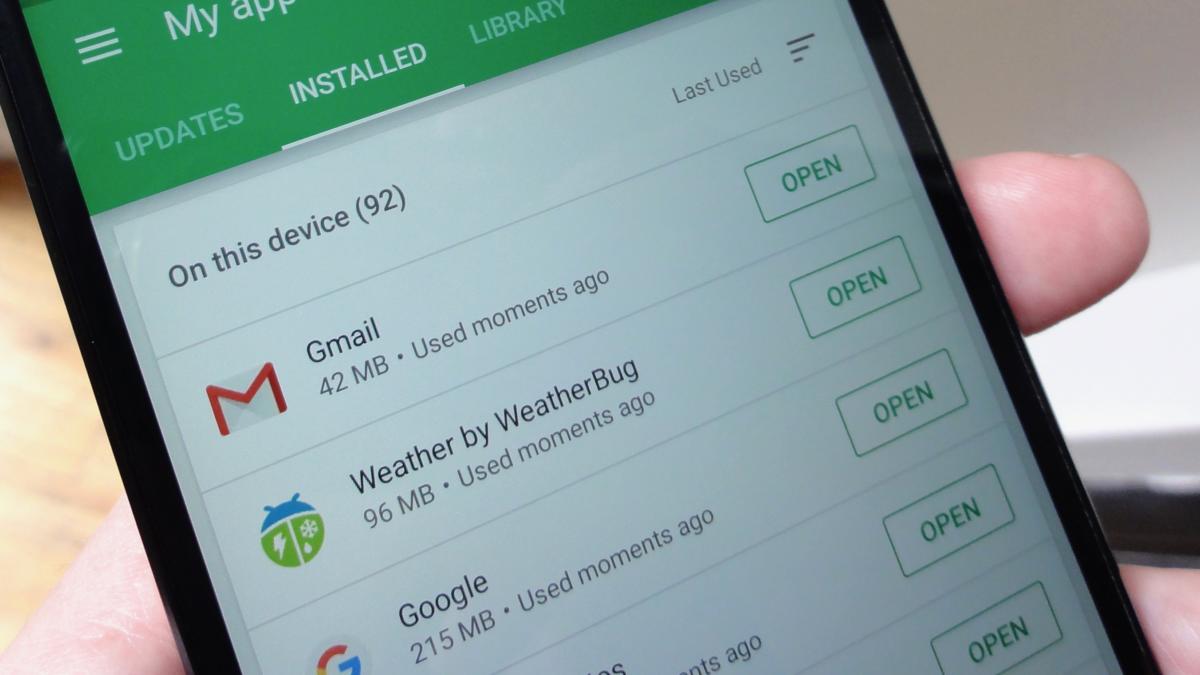
Play Store app least used appsBen Patterson / IDG
You can find out which apps you use the least with help from the Play Store app.
The solution, of course, is to delete some of those apps—ideally, the ones you use the least.
To do so, open the Play Store app, tap the three-line menu button in the top right corner of the screen, tap My apps & games, then tap the Installed tab. Next, tap the Sort button near the top-right corner of the screen, then pick an option, such as Size or—better yet—Last Used. If you sort your apps according to Last Used, scroll to the very bottom of the list to see which apps you use the least. See a seldom-used app you could do without? Tap it, then tap Uninstall.
There are also several apps that can track your app usage and tell you which apps you’re using the least. Among them: App Usage, App Tracker, and QualityTime.